Equipment Engineering Intern | Silgan Containers, Oconomowoc, WI | June – August 2024 Visit Silgan Containers →
Silgan Containers makes metal food cans and ends. As an equipment engineering intern in Oconomowoc, I split the summer between drawings and the shop floor: processing change notices and writing a drawing macro in Inventor, then testing whether cheap 3D-printed tooling could stand in for machined dies when prototyping embossed and formed ends.
2 weeks -> 3 days
prototype lead time for debossed ends
400/hr
parts per hour on the embossing air press
14
engineering change notices processed
Pneumatic Embossing Press
- Designed a 400-part/hour pneumatic embossing press that cut prototype lead time for debossed steel ends from 2+ weeks to 3 days
- A spring-loaded ring clamps the edge of the end during each stroke, mounted on the platen already built for the bubble dome
- Swappable 3D-printed emboss pads screw in from the back, which keeps the whole pad face free for complex designs and makes design changes quick
- Detailed the press’s tool steel components with GD&T
3D-Printed Embossing Tooling
No tooling existed for embossing custom designs into ends, and outsourcing was expensive, time consuming, and would yield poor quality prototypes. I tested whether 3D-printed male and female pads on the shop’s arbor press could do the job, measuring each formed part and turning the results into design rules for converting actual tooling design to 3d printed tooling.
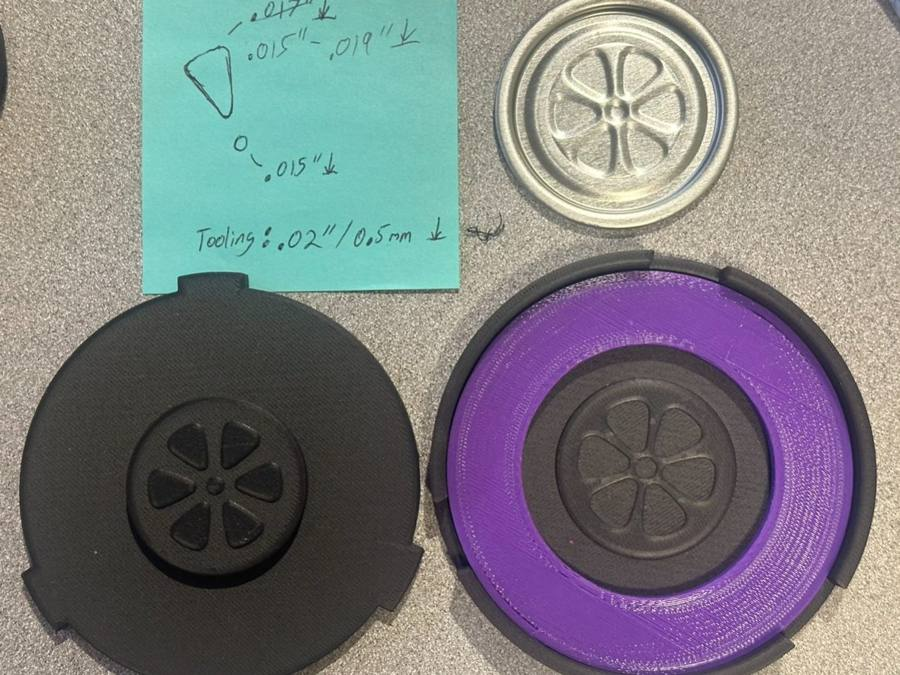
- Flower emboss, 115 ends: the first test, adding a flower pattern to the end panel for stability
- Pressed on the shop’s small arbor press because it was readily available and simple to set up
- Measured formed depths of .015–.019 in. from .020 in. (0.5 mm) tooling
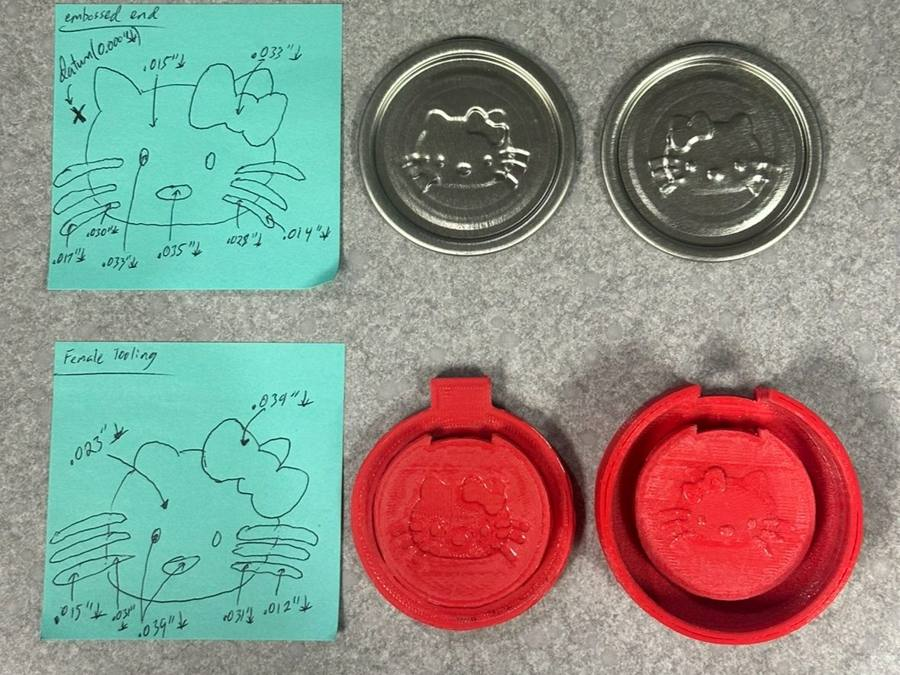
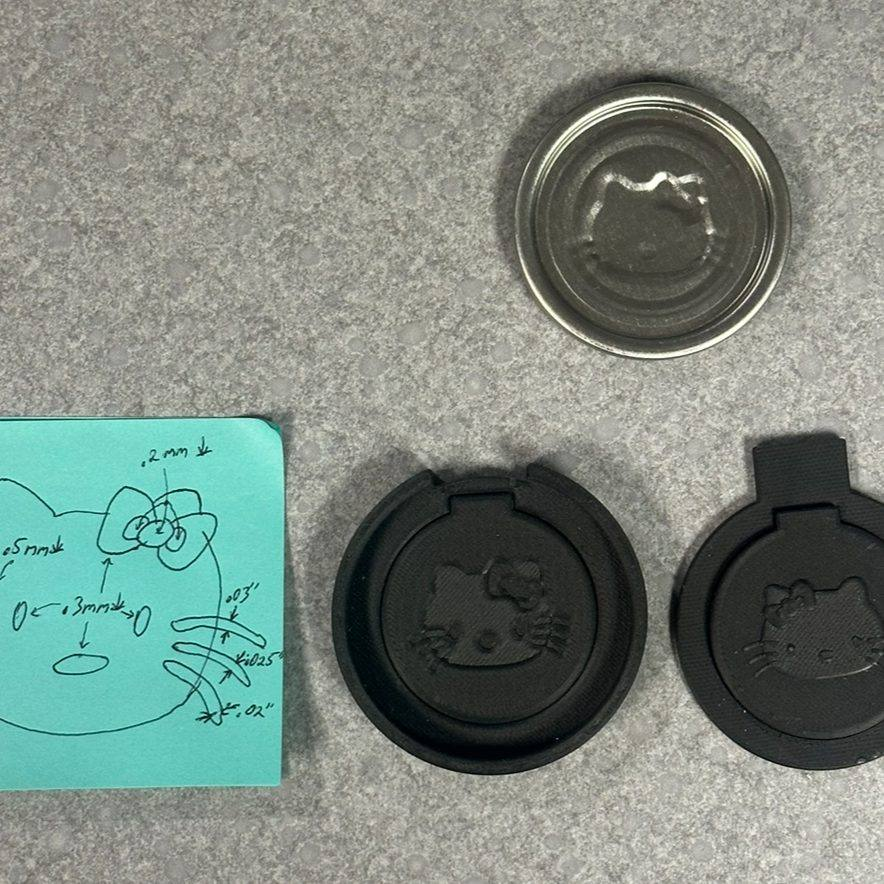
- Hello Kitty emboss, 200 ends: the first version formed the face well, but the bow and whiskers didn’t define. Features were too shallow and too thin, the 3× material-thickness offset was too large, and there were no fillets
- Turned the results into design rules: 0.4–0.8 mm (.016–.031 in.) depth, a 2–2.5× thickness offset, and .01–.02 in. fillets
- The revised design used a 2× offset, 0.5 mm layers (0.4 mm on the whiskers, up to 1 mm on the nose, eyes, and bow), .015 in. fillets on critical edges, and pads that nest better
- Measured the depth of each feature on both the embossed end and the female tooling
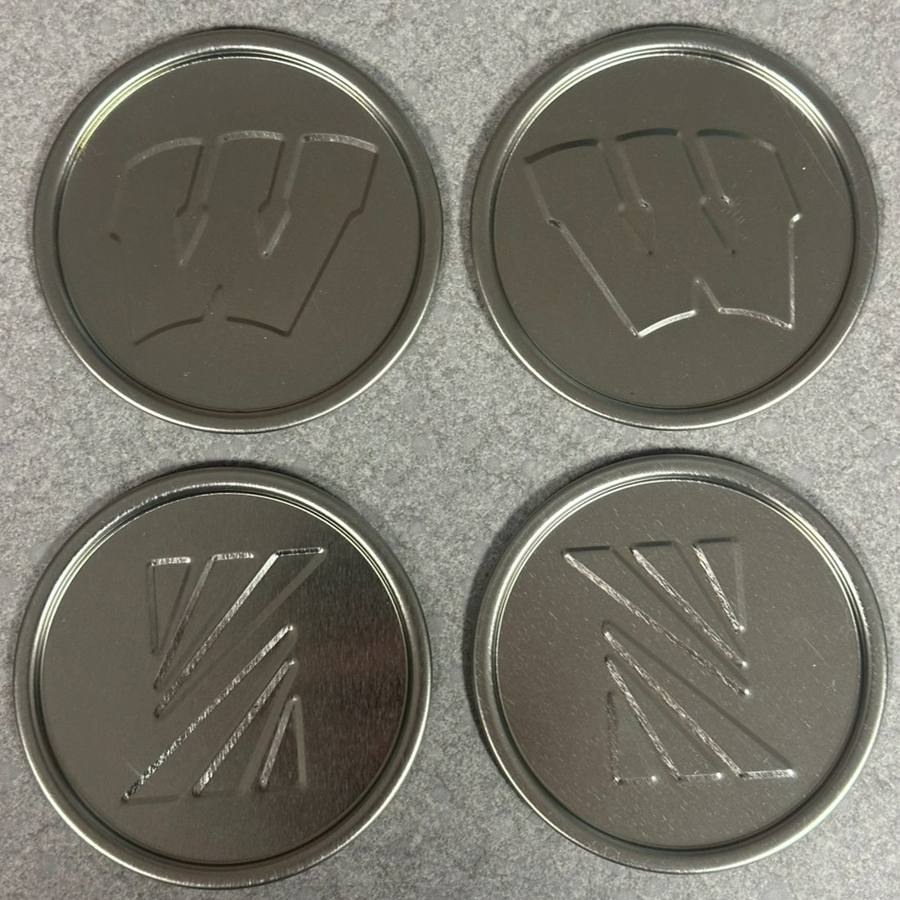
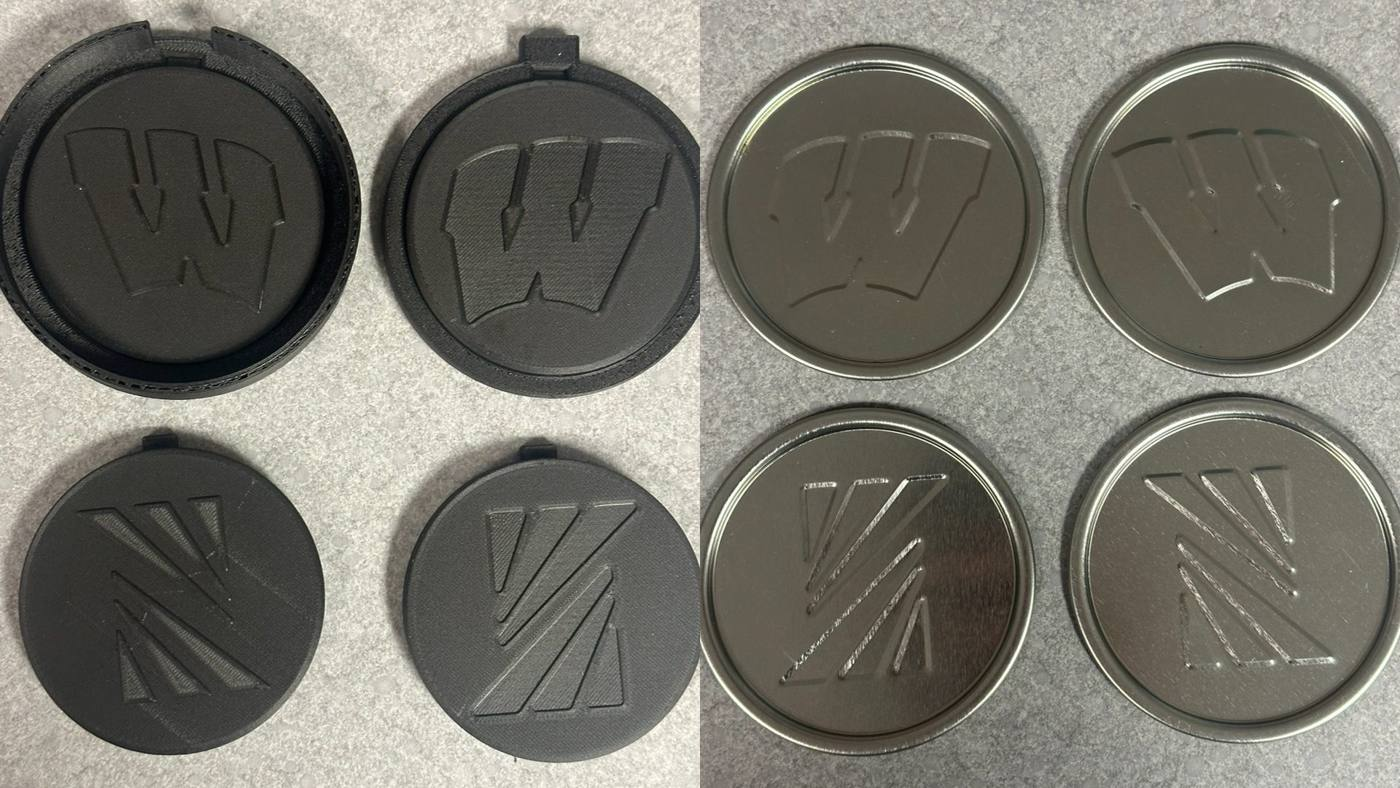
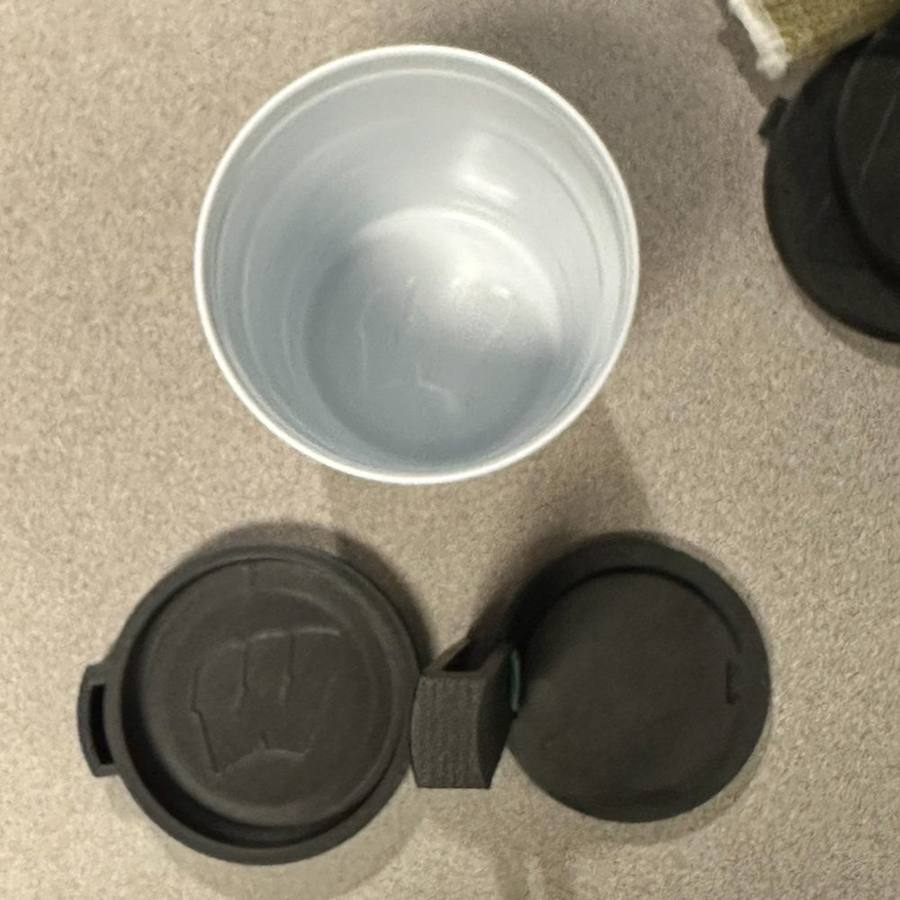
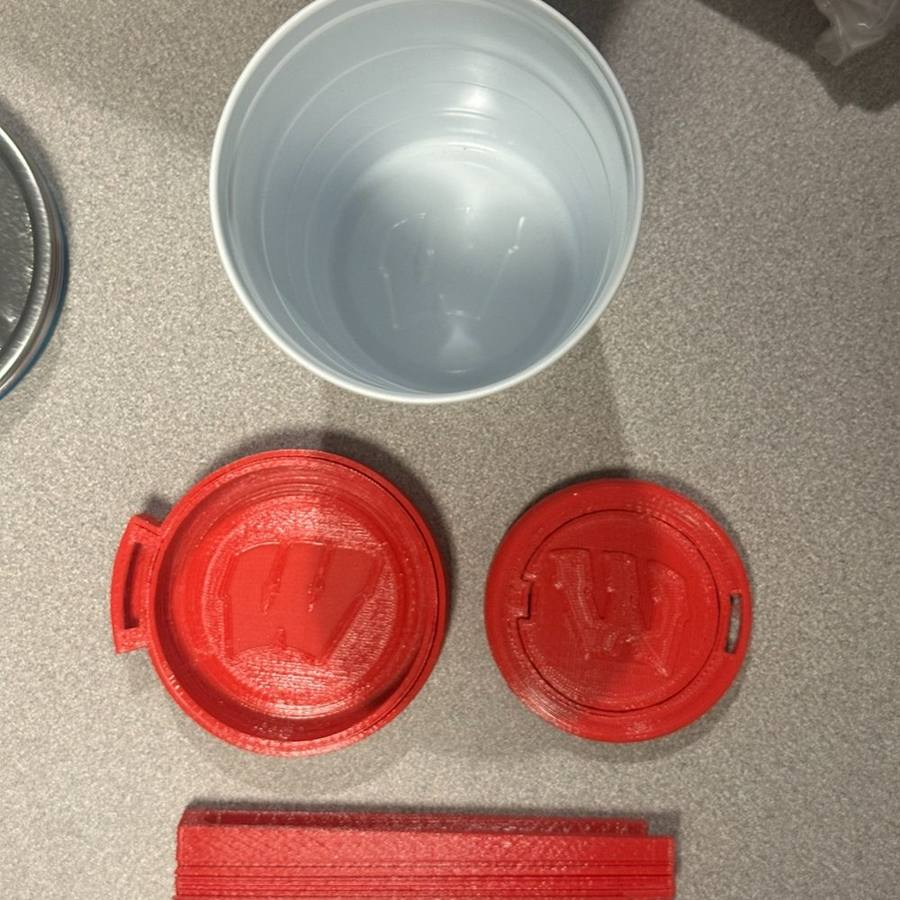
- W coaster, 307 end: the first try at 1.2 mm (.047 in.) depth with no fillets fractured near the bead, where it drew deeper, and left flaws along the edges of the W
- Revised with .01 in. fillets, a 2× thickness offset, and 0.8 mm (.031 in.) depth for sharper detail and less risk of fracture
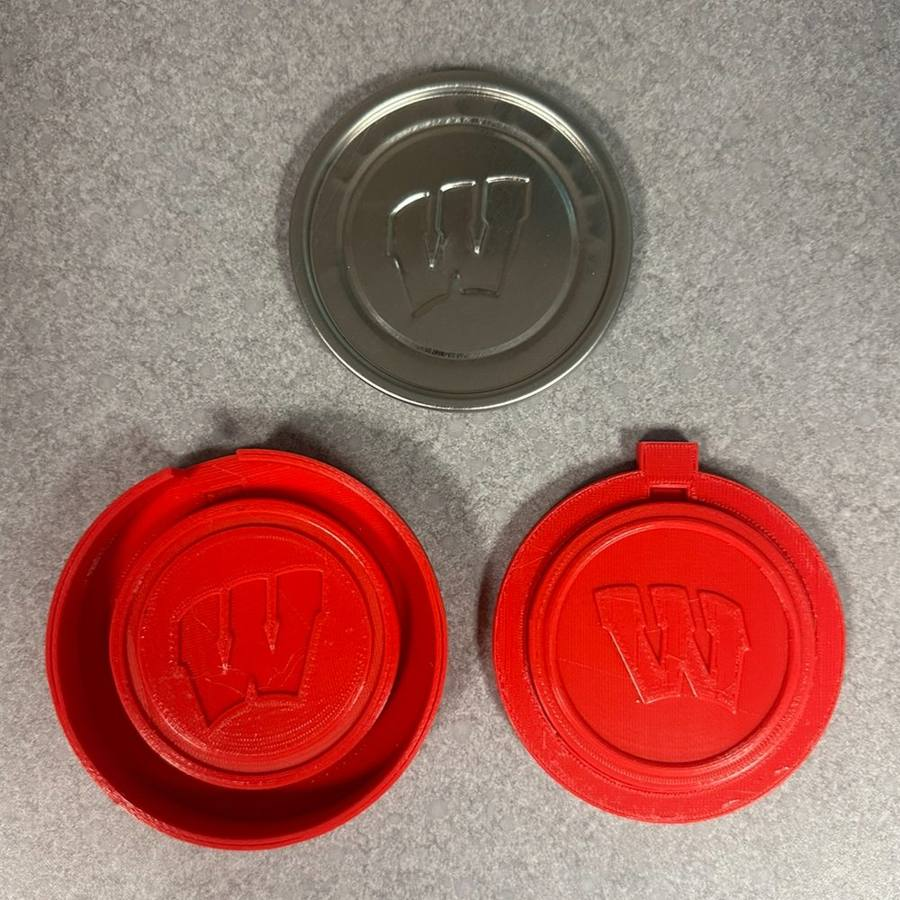
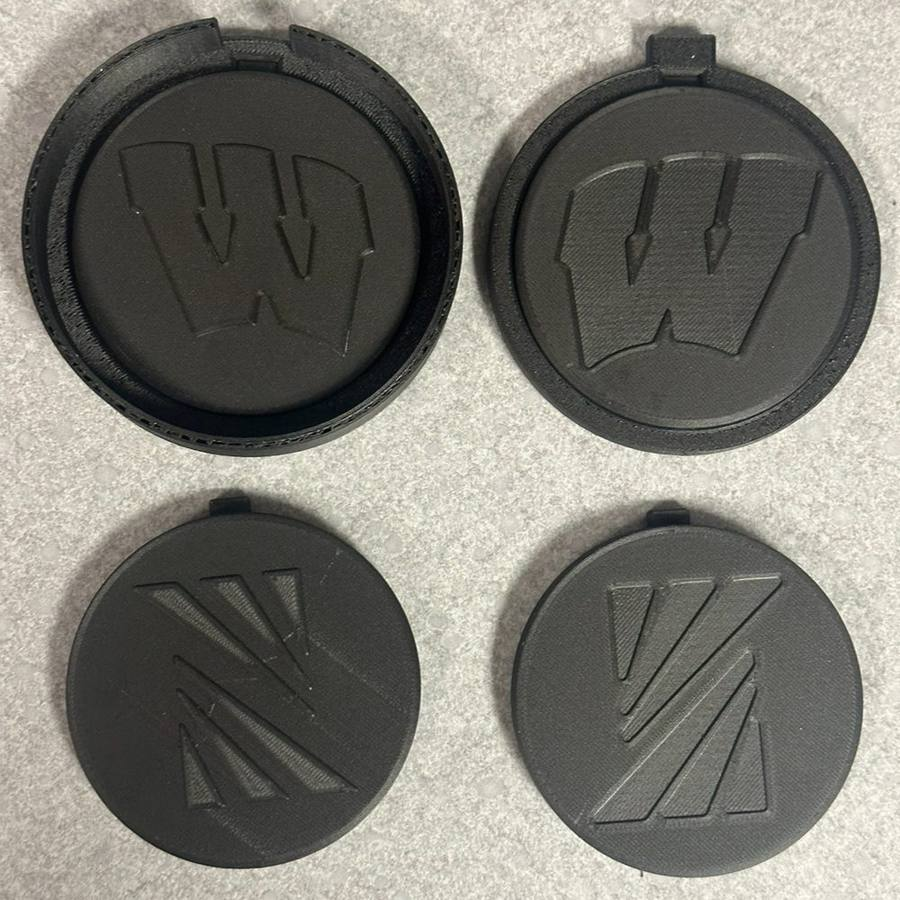
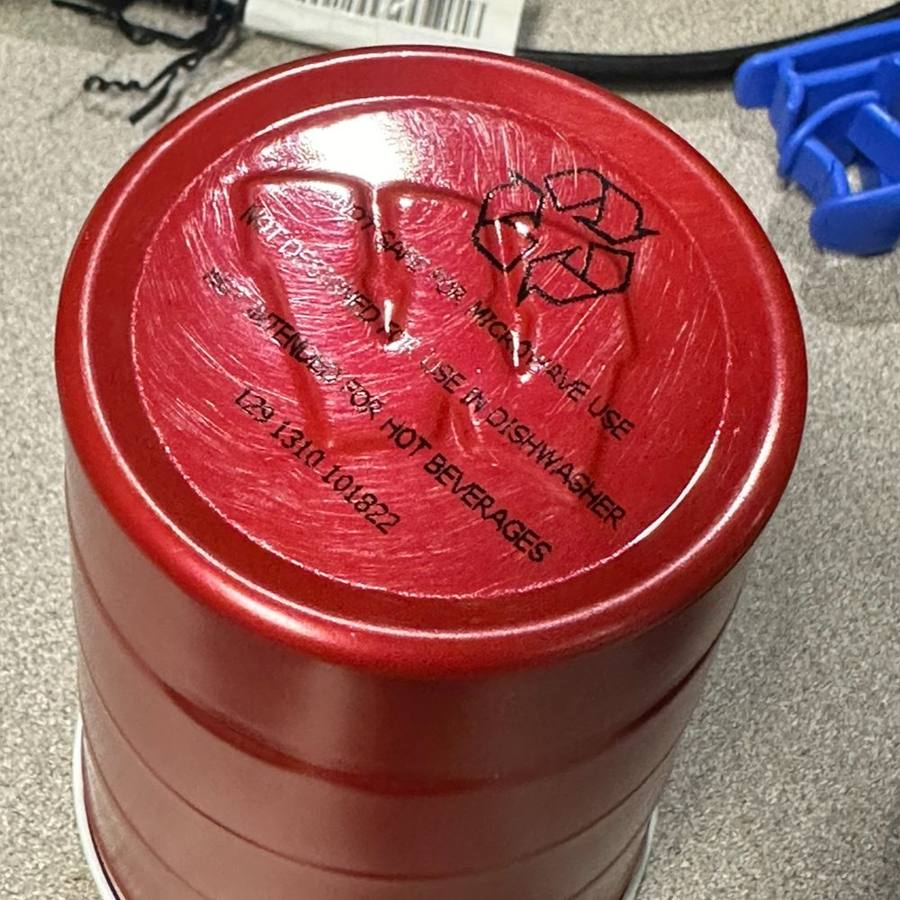
- Aluminum cup: applied the same rules (2× offset, 0.8 mm depth, .015 in. fillets) to emboss a W into the bottom of an aluminum cup
- Pressed on the arbor press with 3D-printed dies
Drawings, Change Notices & Reverse Engineering
- Processed 14 engineering change notices in Autodesk Vault: finding, checking out, and revising drawings and moving them through release states
- Converted legacy 2D drawings into 3D Inventor models with linked GD&T-compliant production drawings
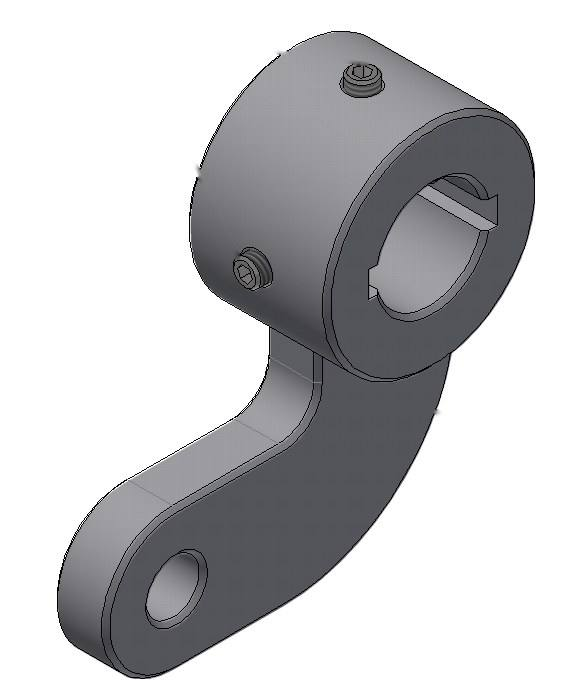
- Reverse-engineered a keyed shaft bracket using a CMM and AutoCAD measurements, applying keyway standards and tolerances
- Measured and reverse-engineered an overspray bracket on a site visit, including its weld callouts
Inventor Precision Macro
Changing the decimal precision on drawing dimensions one at a time is slow, so I wrote a VBA macro using the Inventor API. Select any number of dimensions, press Alt + or Alt −, and it adds or removes a decimal place on all of them, then reselects them so you can keep tapping. The two shortcuts run small wrappers that save the selection, call the routine below with +1 or −1, and restore the selection.
Sub ChangeDimensionPrecision(precisionDiff As Long)

    ' Set a reference to the drawing document.
    ' This assumes a drawing document is active.
    Dim oDoc As DrawingDocument
    Set oDoc = ThisApplication.ActiveDocument

    Dim selected As SelectSet
    Set selected = oDoc.SelectSet

    Dim oDim As GeneralDimension
    Dim newDimStyle As DimensionStyle
    For Each obj In selected
        If TypeOf obj Is GeneralDimension Then
            Set oDim = obj
            oldPrecision = oDim.Precision
            newPrecision = oldPrecision + precisionDiff 'adds precision offset

            'keeps newPrecision in range [0,8]
            If newPrecision > 8 Then newPrecision = 8
            If newPrecision < 0 Then newPrecision = 0

            oDim.Precision = newPrecision
            oDim.TolerancePrecision = newPrecision
        End If
    Next obj
End Sub
Takeaways
- Proper dimensioning and tolerancing, learned through change notices and production drawings
- Reverse engineering parts with a CMM and careful measurement
- Metal forming, including designing 3D-printed tooling and aligning male and female dies
- Basic die press design
Tools & Skills
Autodesk Inventor, Autodesk Vault, AutoCAD, VBA with the Inventor API, GD&T, CMM measurement, reverse engineering, 3D printing for tooling, arbor and pneumatic presses, metal forming (embossing, beading, end forming), engineering change notices.